
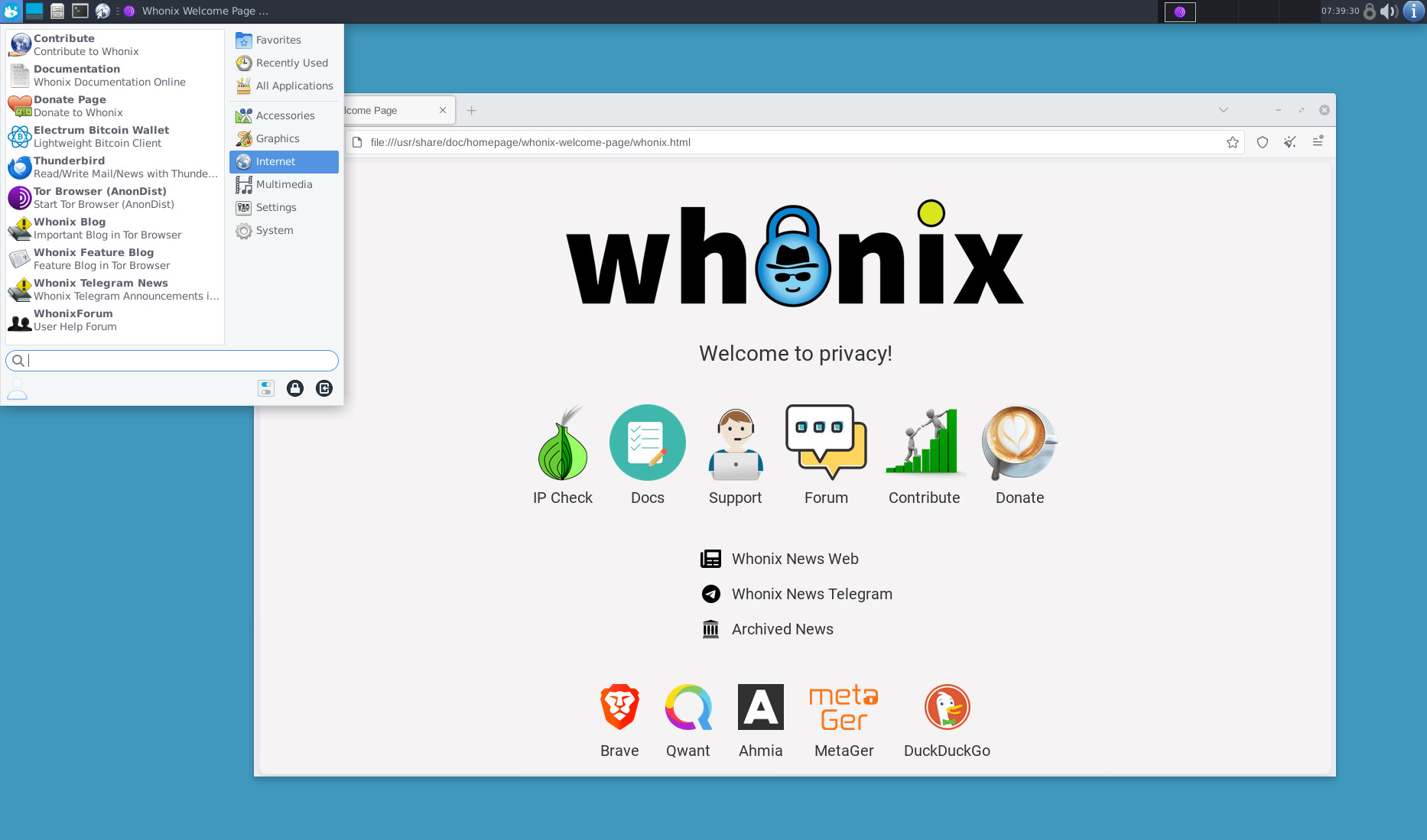
Whether you’re concerned about government surveillance or simply want to remain anonymous, using privacy-focused tools can help safeguard your activity when using Tor. One of the most trusted tools for anonymity is Whonix – a security-focused Linux distribution designed to protect your identity by routing internet traffic through the Tor network. This guide will walk you through what Whonix is, how it works, and how to use it effectively.
What is Whonix?
Whonix is an open-source operating system that focuses on privacy and security. It works by compartmentalizing two virtual machines (VMs):
- Whonix-Gateway: This acts as a gateway and routes all internet traffic through the Tor network.
- Whonix-Workstation: This is where your applications, such as web browsers or messaging tools, run. It uses the Whonix-Gateway for internet access, ensuring that your activities are anonymized.
By isolating the two components in separate virtual machines, Whonix ensures that even if an attacker compromises one of the VMs, the other remains secure, offering an added layer of protection.
Why Use Whonix?
Whonix provides multiple layers of security that make it a valuable tool for privacy-conscious users. Here’s why you might want to use it:
- Complete Anonymity: By routing all traffic through Tor, Whonix makes it extremely difficult for anyone to trace your internet activity back to you.
- No IP Leaks: Whonix ensures that no connection leaves the system without being routed through Tor, which prevents accidental IP address leaks.
- Isolation: With Whonix’s two-VM setup, even if one VM is compromised, your sensitive data and activities in the other remain safe.
- Protection Against Malware: Using a separate VM for your online activities reduces the risk of malware infecting your main system.
Setting Up Whonix
Before you begin using Whonix, you need to set up a few things. The process is straightforward but requires you to have virtual machine software, such as VirtualBox or QEMU, installed on your system. Here’s a step-by-step guide to getting started:
1. Download and Install VirtualBox
Whonix is run through VirtualBox, a popular free and open-source virtualization tool. You can download it from the official website here: https://www.virtualbox.org.
- Choose the version that’s compatible with your operating system (Windows, macOS, or Linux).
- Install VirtualBox following the instructions for your OS.
2. Download Whonix
Whonix is available for download from its official website: https://www.whonix.org.
- Whonix provides pre-configured VirtualBox images, which makes the setup process easier.
- Choose the Whonix for VirtualBox option, and download the Whonix-Gateway and Whonix-Workstation images.
3. Import Whonix Virtual Machines
Once you have VirtualBox and the Whonix images, you can import the VMs into VirtualBox.
- Open VirtualBox and click on File > Import Appliance.
- Select the Whonix-Gateway and Whonix-Workstation OVA files you downloaded.
- Follow the prompts to complete the import process.
4. Configure Whonix-Gateway and Whonix-Workstation
Before you start using Whonix, you’ll need to adjust a few settings in VirtualBox to ensure everything works smoothly.
- Network Adapter: Make sure that both VMs are set to use NAT (Network Address Translation) for their network adapters. The Whonix-Gateway will act as a gateway for the Whonix-Workstation, routing all traffic through the Tor network. To do this, in the VirtualBox settings for each VM:
- Go to Settings > Network > Adapter 1.
- Set it to NAT.
- Memory Allocation: Whonix recommends allocating at least 2GB of RAM for both the Whonix-Gateway and Whonix-Workstation for smooth performance, although you can adjust this based on your system specs.
5. Start Whonix-Gateway
- Launch the Whonix-Gateway virtual machine first.
- Wait for it to boot up, and the system will automatically connect to the Tor network. You’ll see a Tor connection status message once it’s connected.
6. Start Whonix-Workstation
- Once the Whonix-Gateway is connected to Tor, you can start the Whonix-Workstation VM.
- The Workstation will automatically use the Whonix-Gateway for internet access, ensuring all traffic is routed through Tor.
Using Whonix for Secure Browsing
After setting up the virtual machines, you’re ready to begin using Whonix for secure and anonymous browsing. The default browser in Whonix is Tor Browser, which is designed for privacy and anonymity.
- Launch Tor Browser from the Whonix-Workstation’s desktop.
- Use the browser as you would any regular web browser, but with the added benefit of Tor’s privacy features.
- Be sure to avoid logging into any accounts that could reveal your real identity, such as email or social media accounts linked to your personal information.
Best Practices for Using Whonix
While Whonix provides a robust layer of privacy, following certain best practices will further improve your anonymity and security.
- Avoid Mixing Identities: Don’t log into any accounts you use outside of Whonix while browsing in the Workstation VM. This can reveal your real-world identity.
- Regularly Update Whonix: Keeping Whonix up to date is essential for maintaining the latest security patches. Update your system regularly to ensure you are protected against vulnerabilities.
- Don’t Use Personal Information: Avoid entering any personal details that could link you to your activities in the Workstation. Always use pseudonyms and encrypted communications.
- Practice Good OpSec: Be mindful of your behavior online. Even with Whonix, your actions can still expose you to risks if you aren’t careful with what you share or how you behave online.
Troubleshooting Whonix
If you encounter any issues while using Whonix, here are a few common solutions:
- Tor Won’t Connect: Ensure that the Whonix-Gateway VM is running and properly connected to the Tor network. If you still face issues, check for any VirtualBox or network configuration problems.
- Slow Connection: Tor can sometimes be slow, especially during high traffic periods. Consider using a faster Tor bridge or checking your system’s resource allocation in VirtualBox.
- No Network Access in Workstation: Ensure that the Whonix-Workstation’s network adapter is set to use the Whonix-Gateway’s NAT connection.
Closing Up
Whonix is a powerful tool for anyone serious about maintaining their privacy and anonymity online. With its two-VM architecture, it provides an added layer of security, ensuring that your activities cannot easily be traced back to you. By following this guide, you can set up Whonix on your system and start using it for secure browsing. Always remember that maintaining anonymity is an ongoing process, and being mindful of your online behavior is just as important as using privacy tools like Whonix.
